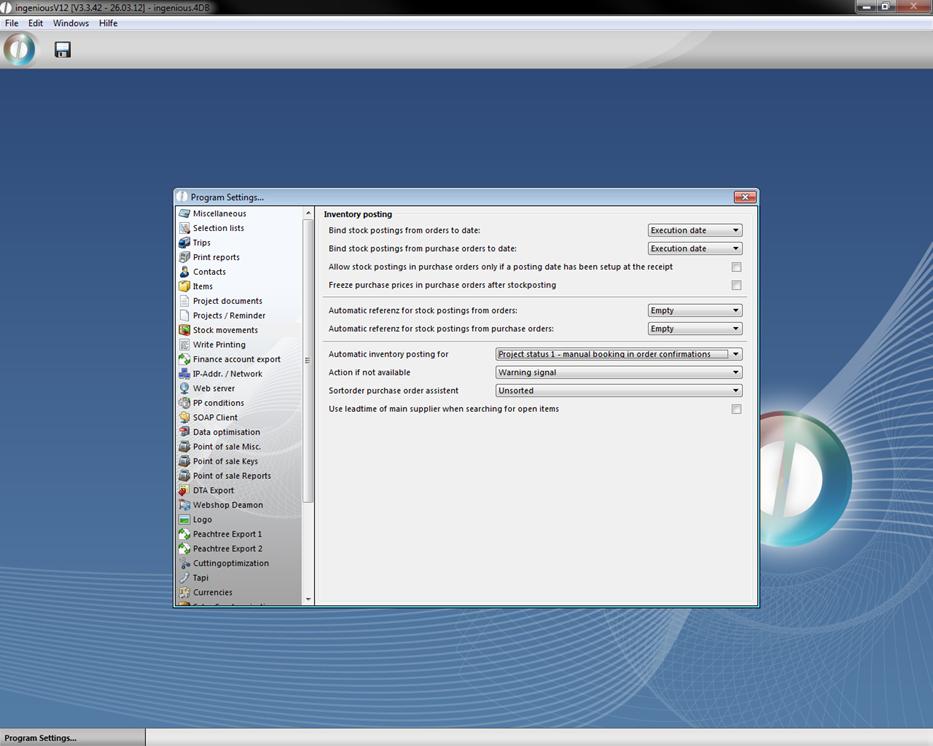
The category “Inventory postings” is only displayed in the project that is set in the program settings for the automatic inventory posting. In the displayed example it is order confirmation. You can also bind the inventory posting to an invoice or a delivery note. You can select inventory postings in the selection area of the detail view of a project. Here you find a list of all stock kept items.
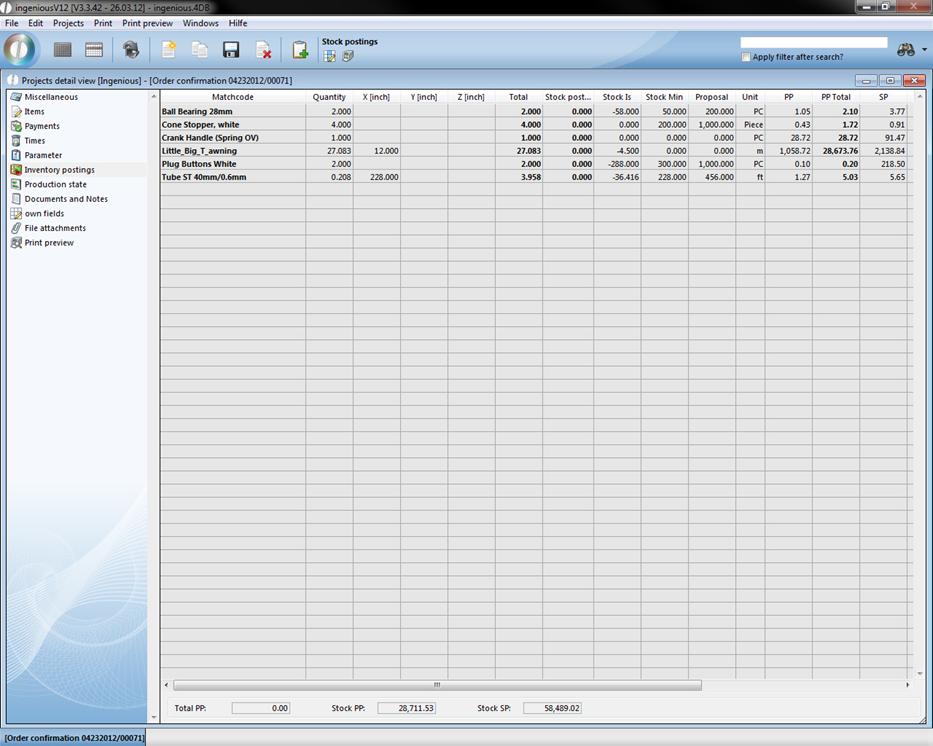
When you click the button  the window “Item stockview” will open up, where you can activate and deactivate several columns by double click. Additionally you can move columns by drag and drop.
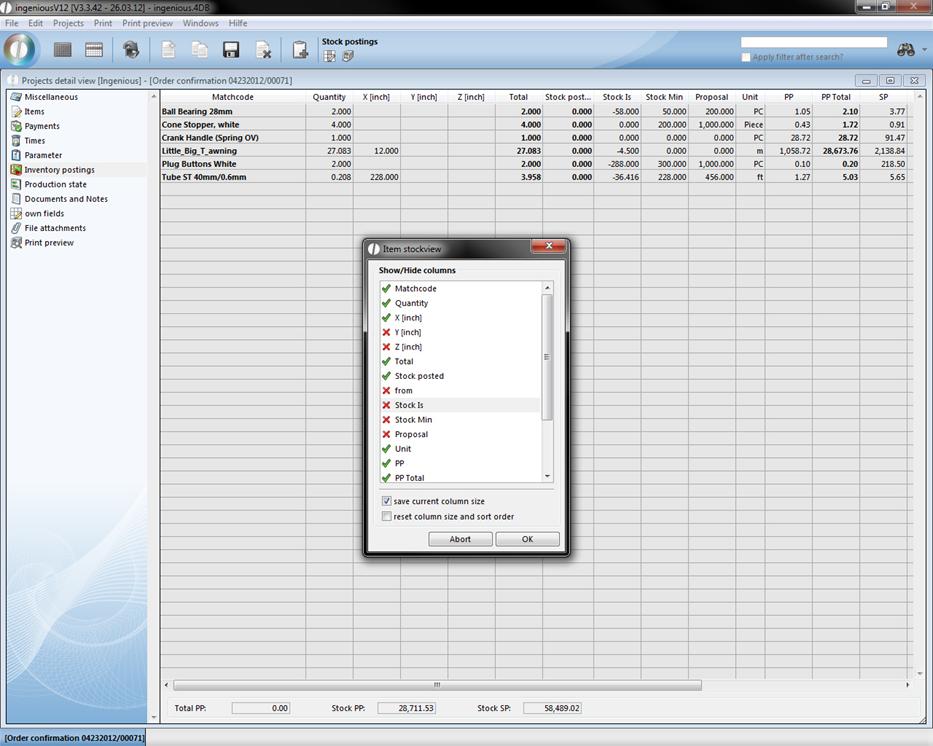
When you check “save current column size” your settings will be applied to the detail view. With “reset column size and sort order” you can restore the original settings.
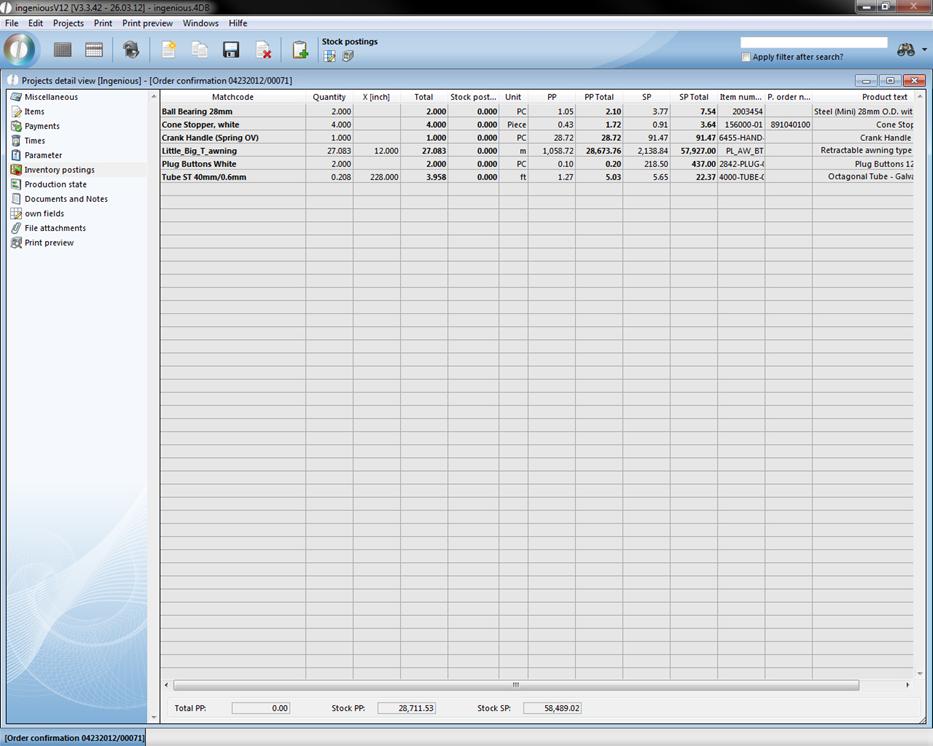
If you want to print the listed items, just click  . All the list view settings will be applied to the printout and the total prices will be summed.
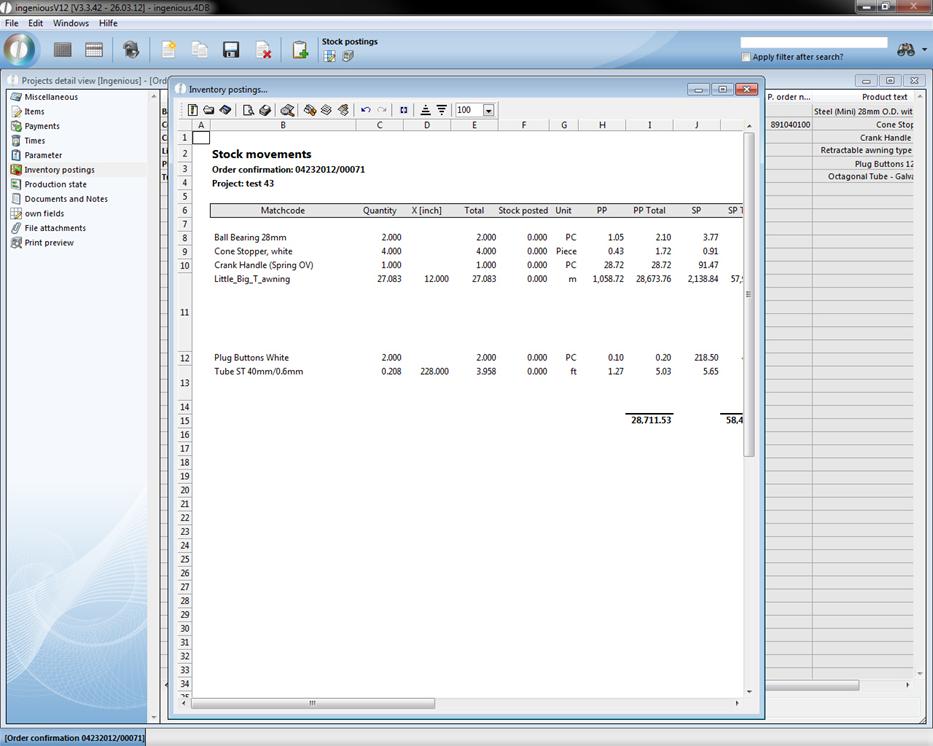
You can also view the inventory postings in the item detail view. When you double click an item in the category “items”, the mentioned detail view will open up.
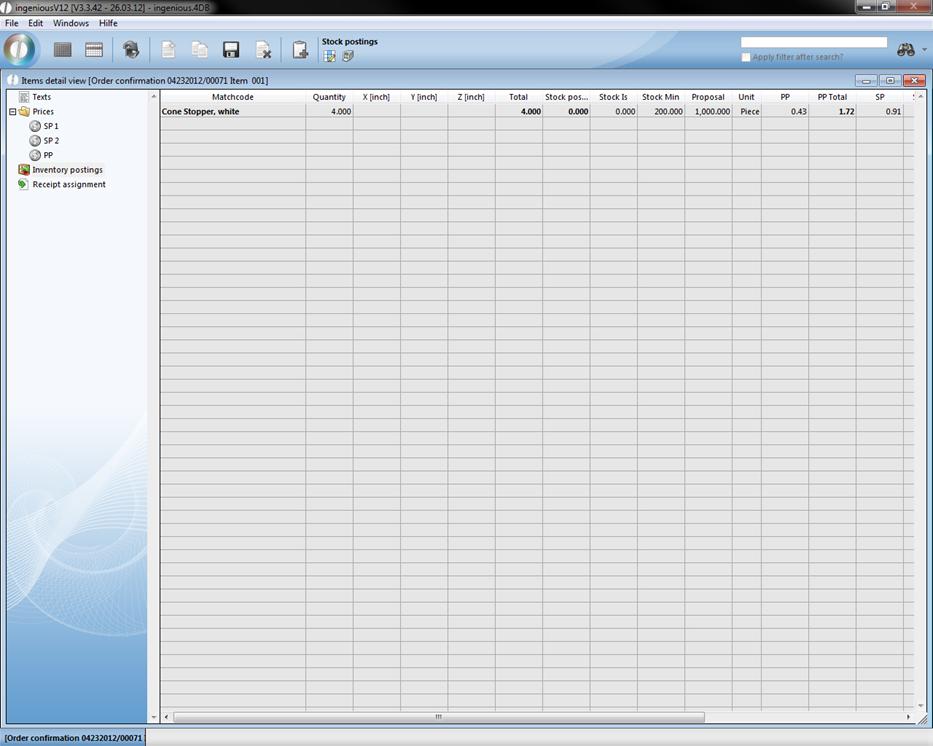
You can also bind the inventory postings to a specific date of the project and set a automatic reference. The corresponding settings you can find in the category “Stock movements” in the program settings.